

Your Mac or PC, Quick and Tidy Again.
Crumbs checks your computer, gives it a health score, and fixes what is slowing it down with one button. Free to download and scan.
Download for Mac Download for Windows
- Mac macOS 14 Sonoma or later, Apple silicon or Intel
- Windows Windows 10 or 11, 64-bit
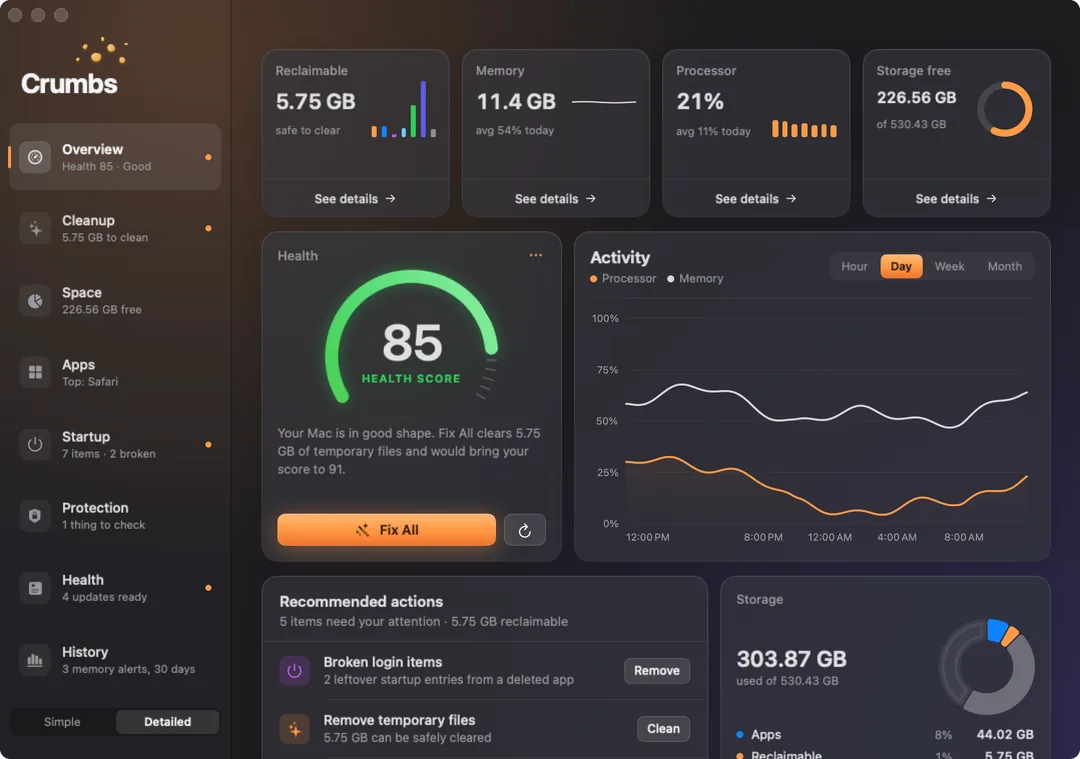
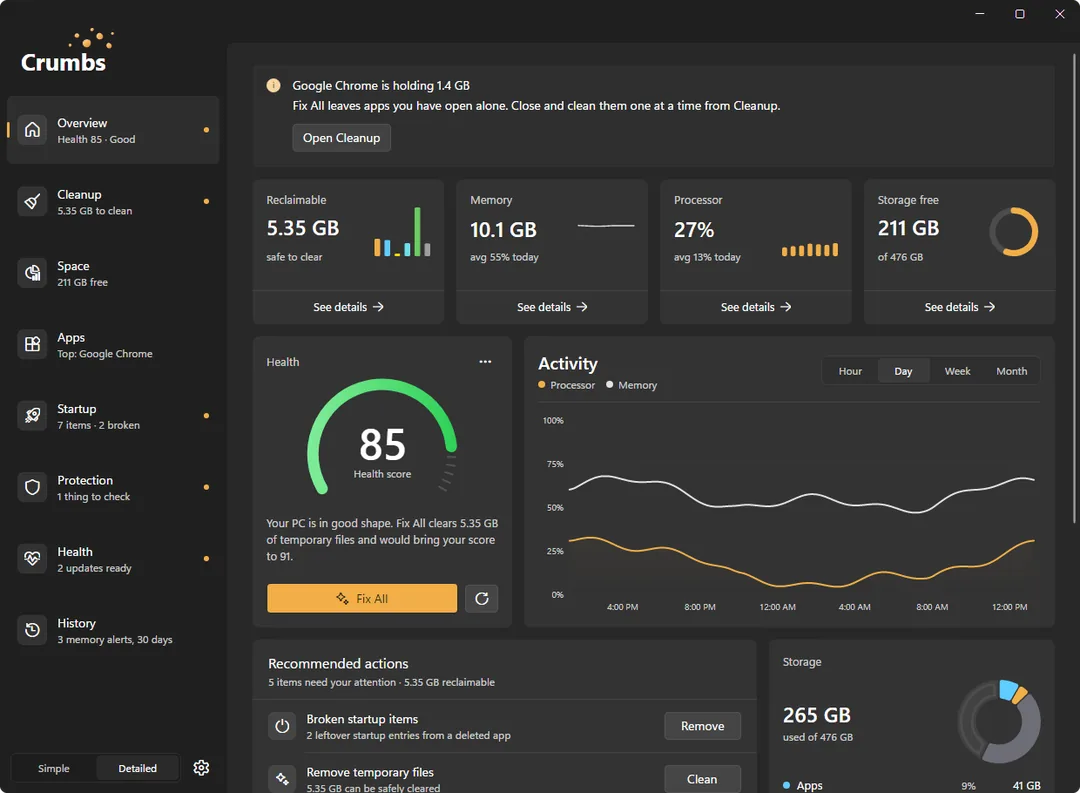
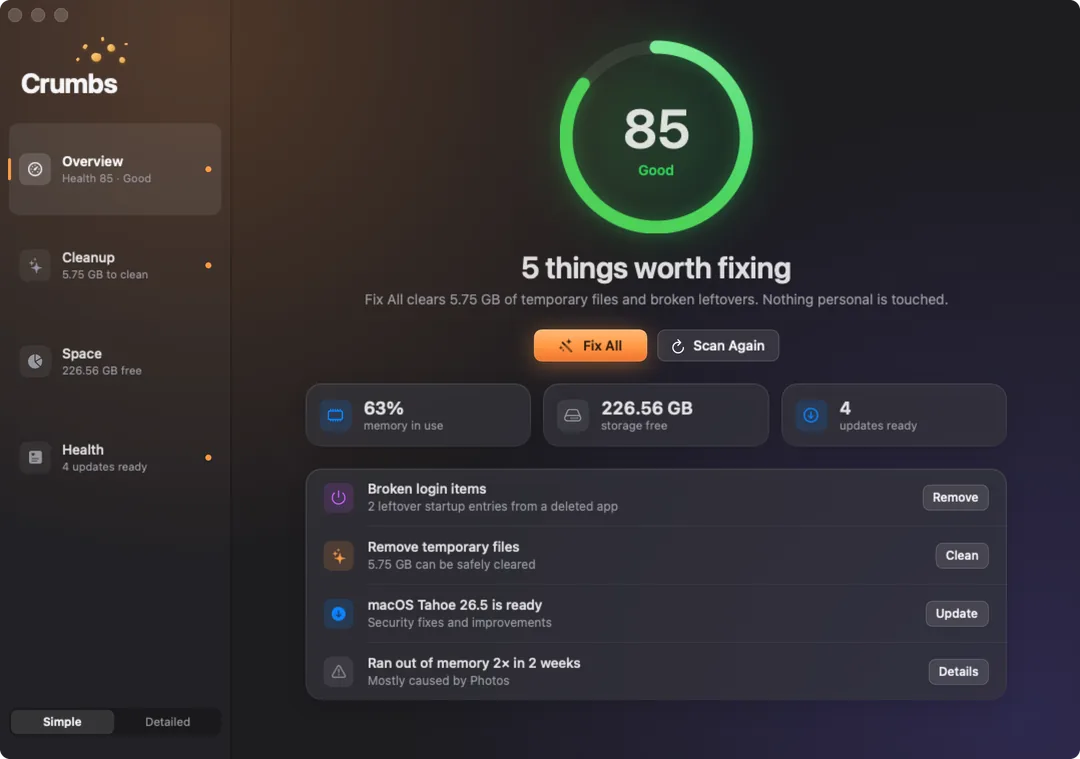
One Score. One Button.
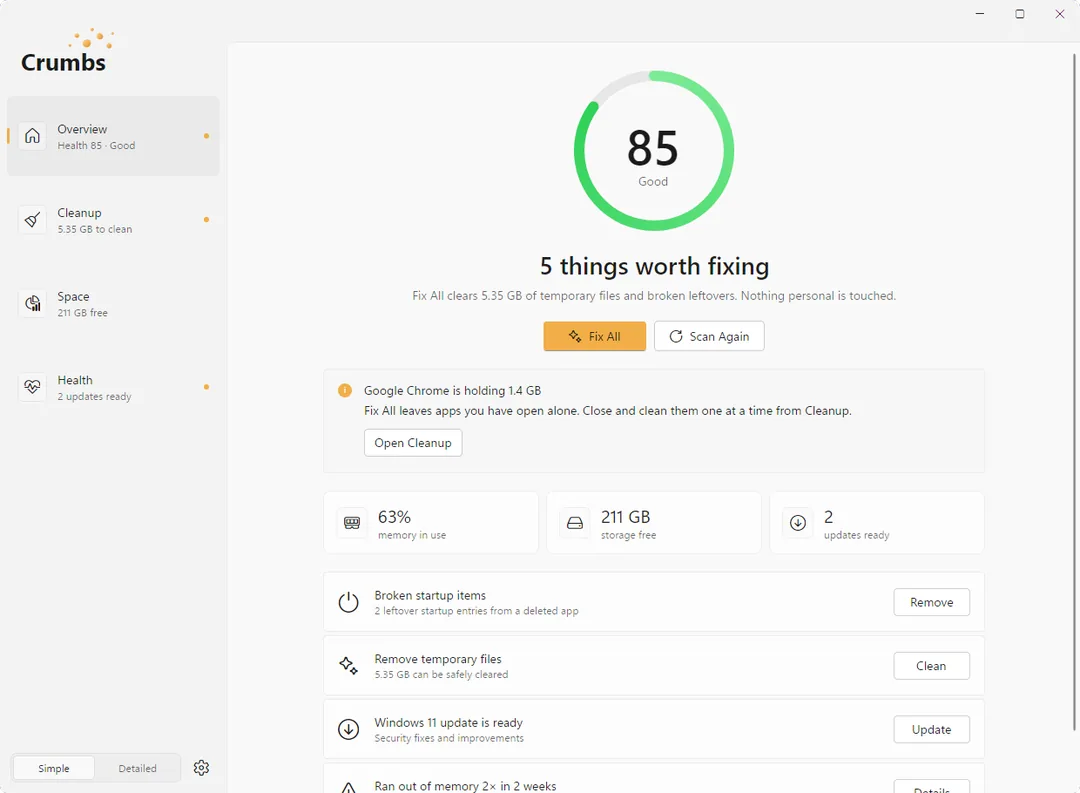
Simple view shows how your computer is doing, the few things worth fixing, and a single Fix All button. Nothing personal is touched.
Want the numbers behind it? Switch to Detailed for memory, processor, storage and a full activity history.
We Got You Covered.
A Mac at home, a PC at work, or a house full of both. Crumbs works the same on each, with the same pages, views and features, and looks at home on each: a proper Mac app on your Mac, a Windows 11 app on your PC.
What It Cleans, and What It Leaves Alone.
Cleans
- App caches
- Browser caches, and you stay signed in
- Old log files
- Installers sitting in Downloads
- Old iPhone update files
- Leftover developer build files
Never touches
- Your documents and photos
- Mail and messages
- Passwords
- iCloud
- Anything macOS needs in /System
- Time Machine backups
Cleans
- App caches
- Browser caches for Chrome, Edge, Brave, Opera, Vivaldi and Firefox, and you stay signed in
- Temporary files more than a week old
- Error reports and crash dumps
- Old installers in Downloads, sent to the Recycle Bin
- Leftover developer files
Never touches
- Documents, Desktop and Pictures
- OneDrive
- Program Files
- Anything else in Downloads
- The registry: it is never a registry cleaner
- System restore points
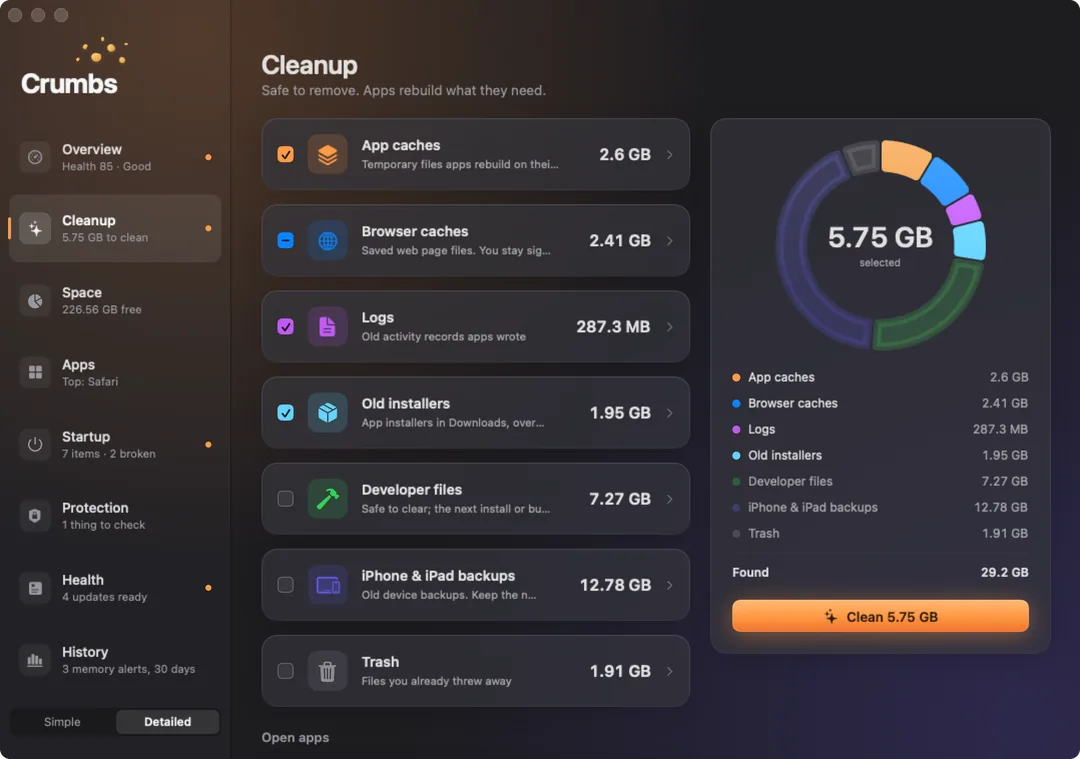
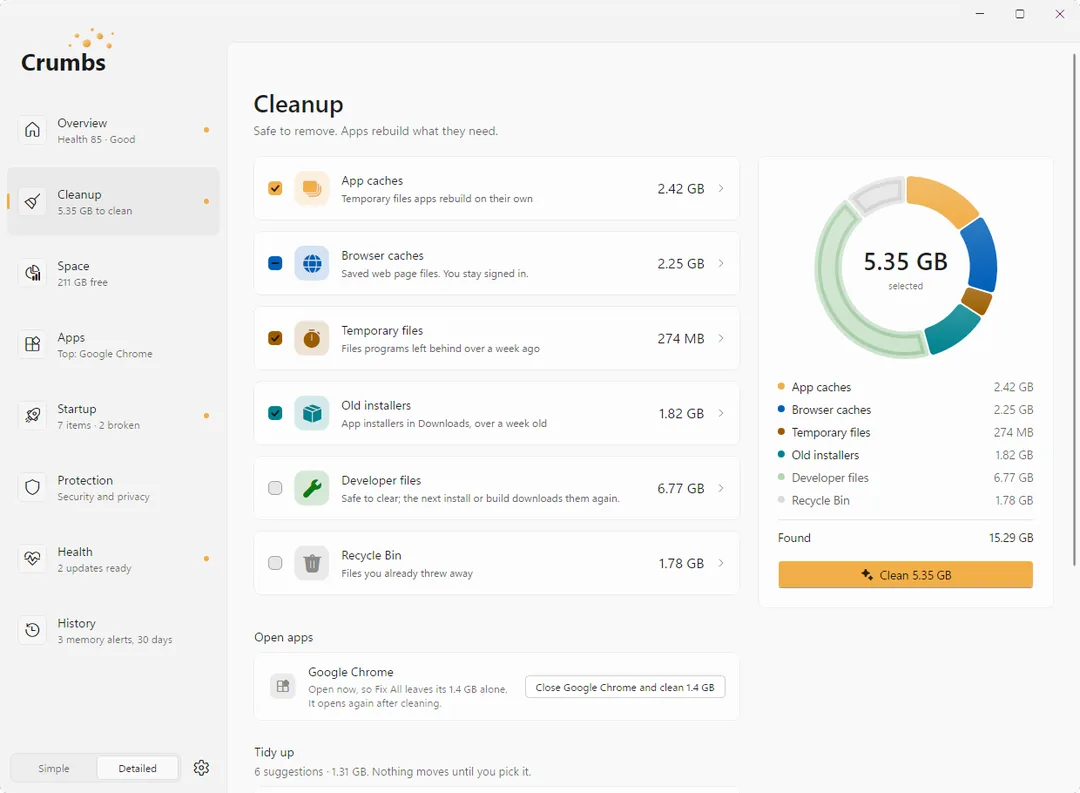
Fix All leaves alone anything an app you have open is still using. To clean those too, Cleanup offers to close that one app, clean it and open it again, and browsers come back with your tabs. Developer caches are listed but never ticked for you, since the next build just downloads them again. Want a safety net? Turn on Move to Trash and anything Crumbs removes can be put back with Undo.
Fix All leaves alone anything an app you have open is still using. To clean those too, Cleanup offers to close that one app, clean it and open it again, and browsers come back with your tabs. Developer caches, the Recycle Bin and the graphics shader cache are there if you want them, but never ticked for you; games rebuild the shader cache and may stutter briefly the first time. Cleaning never asks for administrator rights.
See What Is Taking Up Space.
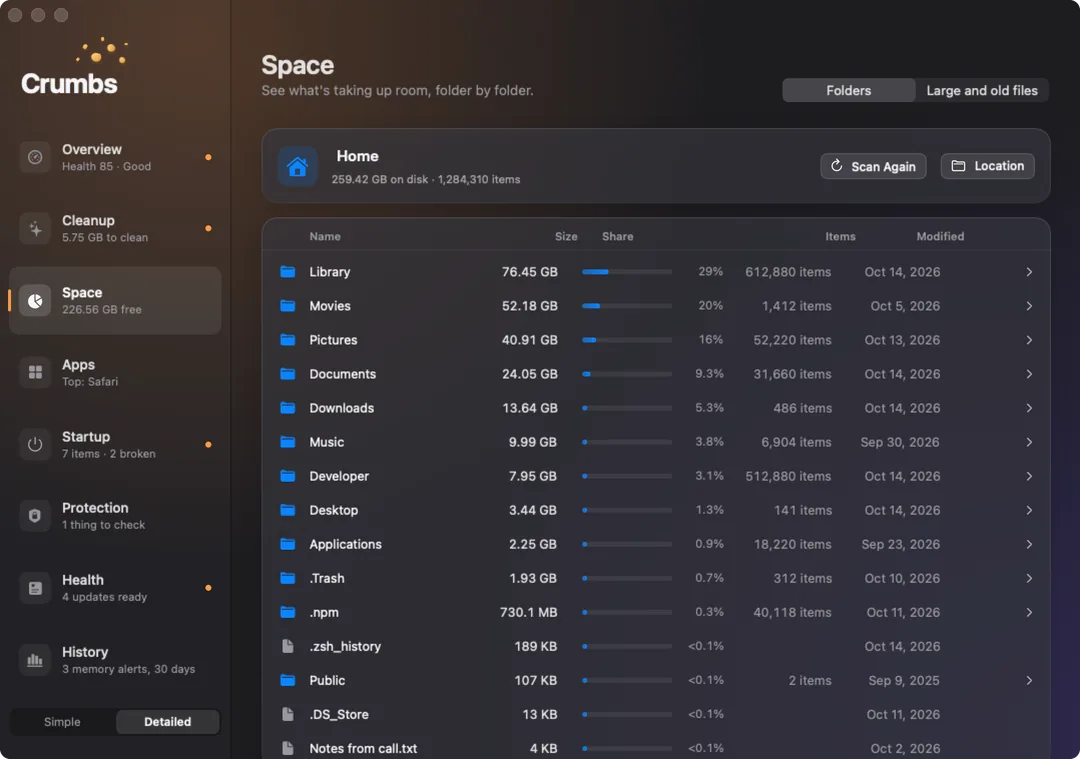
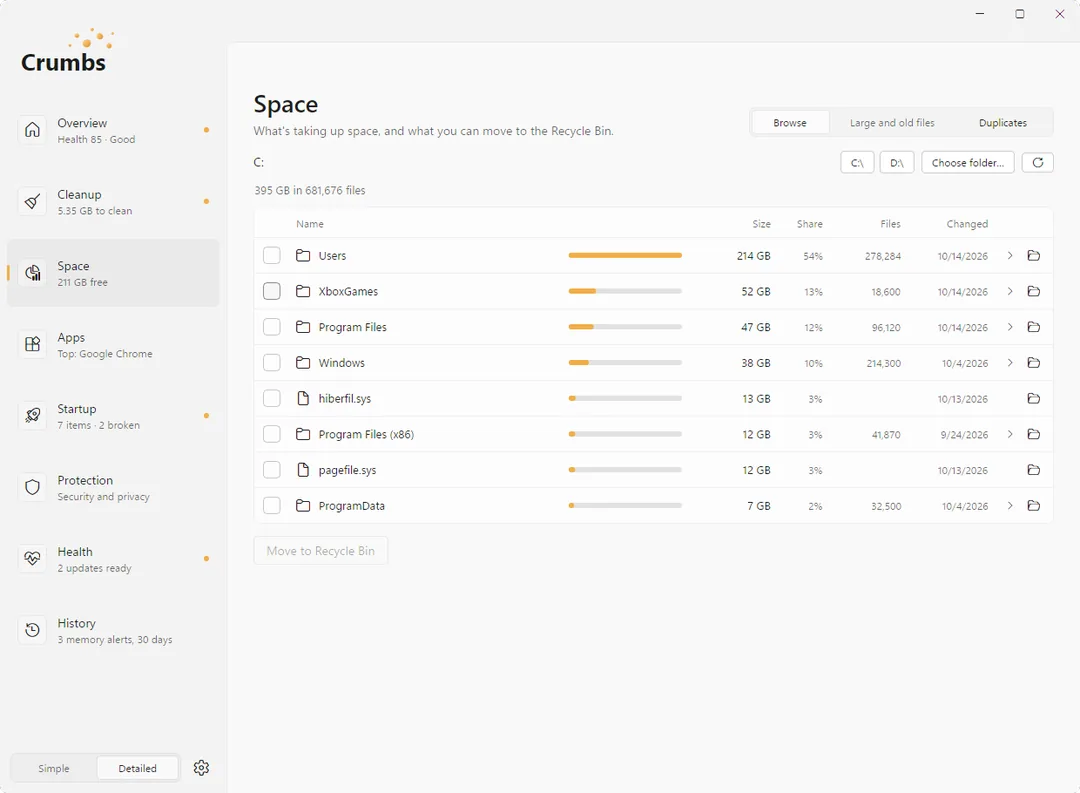
The Space viewer lays out any folder or drive by size, biggest first, so you can see where it all went and click in for more. A Large and old files view rounds up anything over 100 MB or untouched for a year.
Move what you do not need to the Trash or Recycle Bin yourself, or open its folder. System and app folders are view only, so nothing important goes by mistake.
It Keeps an Eye on the Rest, Too.
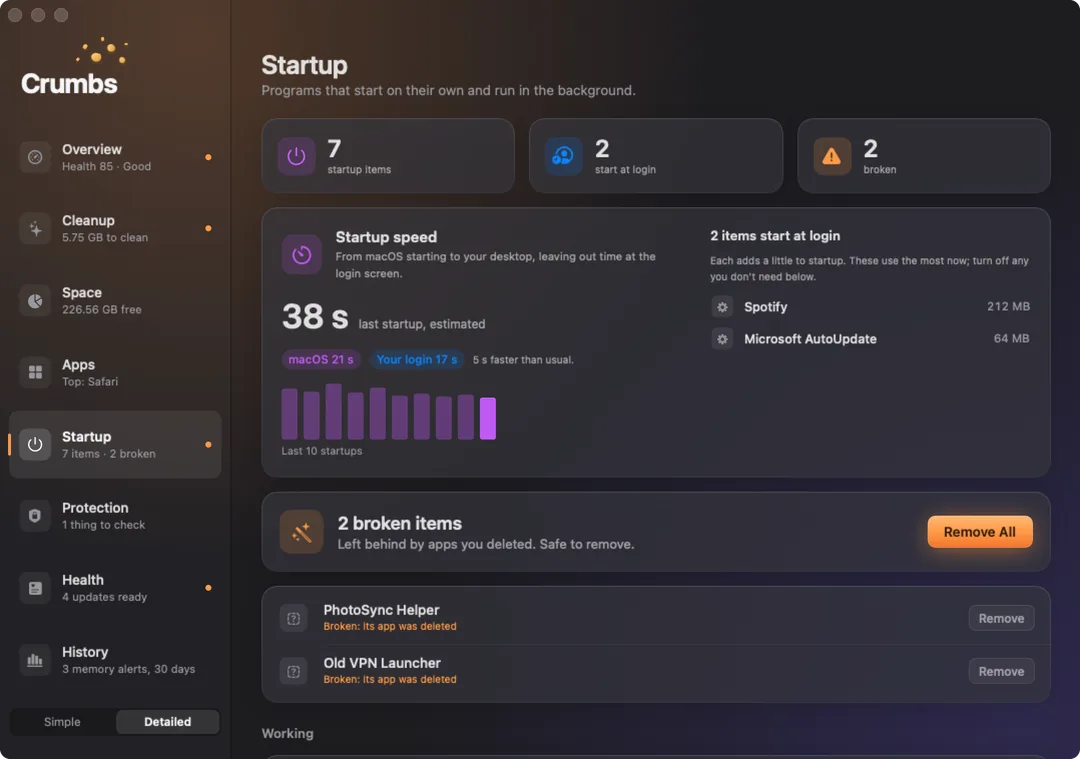
Startup items
See everything that starts with your Mac, turn items on and off, and see how long startup takes and what slows it down. Clearing out leftovers from apps you deleted is Pro.
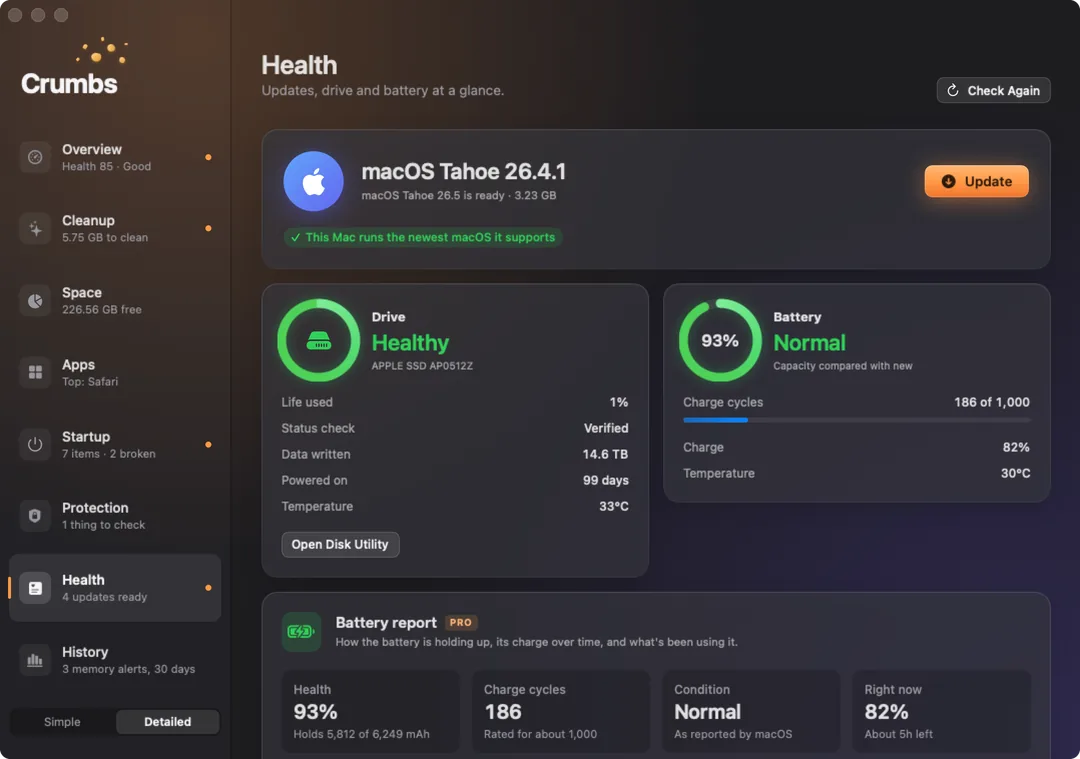
System updates, drive and battery
Checks for macOS updates, reads your drive's health and your battery's condition, and reminds you when your last Time Machine backup is getting old. A full battery report is Pro.
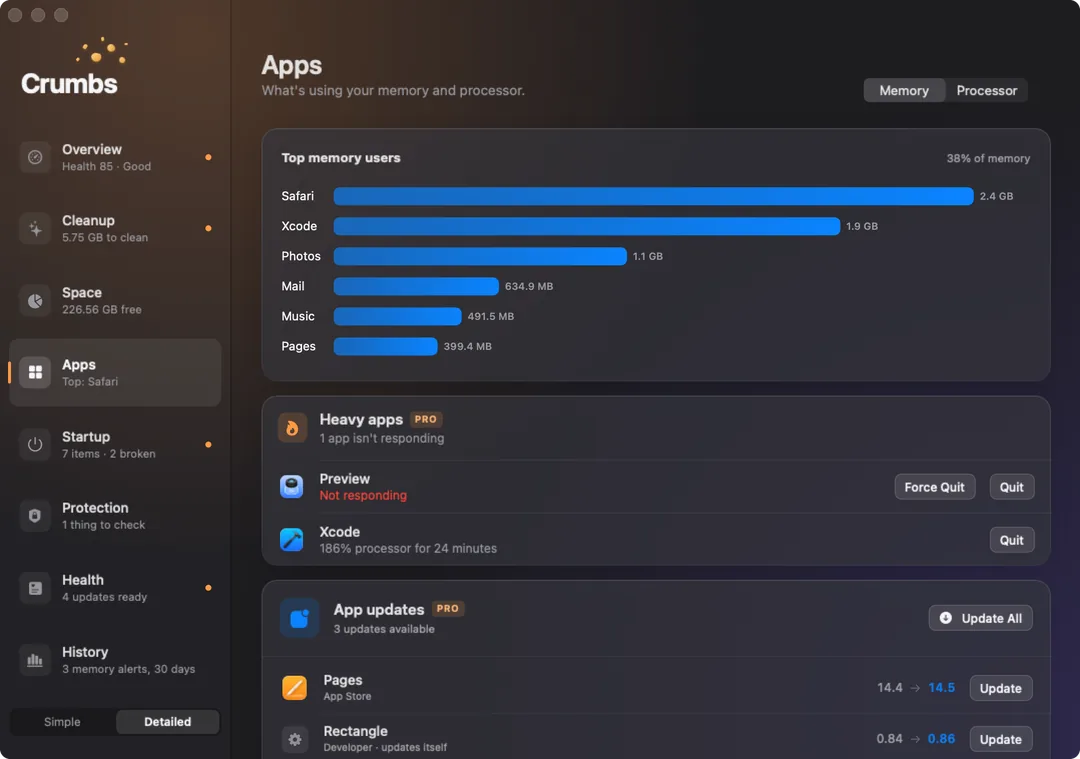
Your apps
See which apps are using the most memory and processor, and quit them from one place. It also lists app updates, only real Mac versions. One-click updates, the uninstaller that finds leftovers, and alerts when an app hogs your Mac or stops responding are Pro.
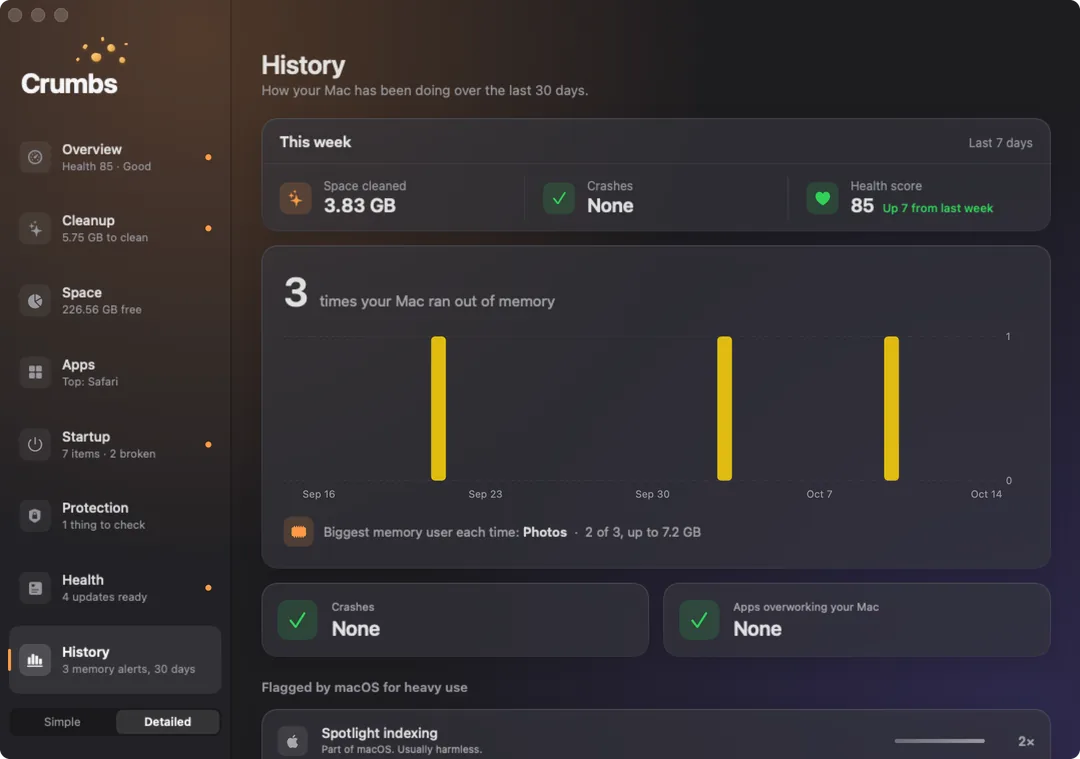
30-day history
Shows when memory ran out and which apps have been overworking your Mac, with a short summary every Monday.
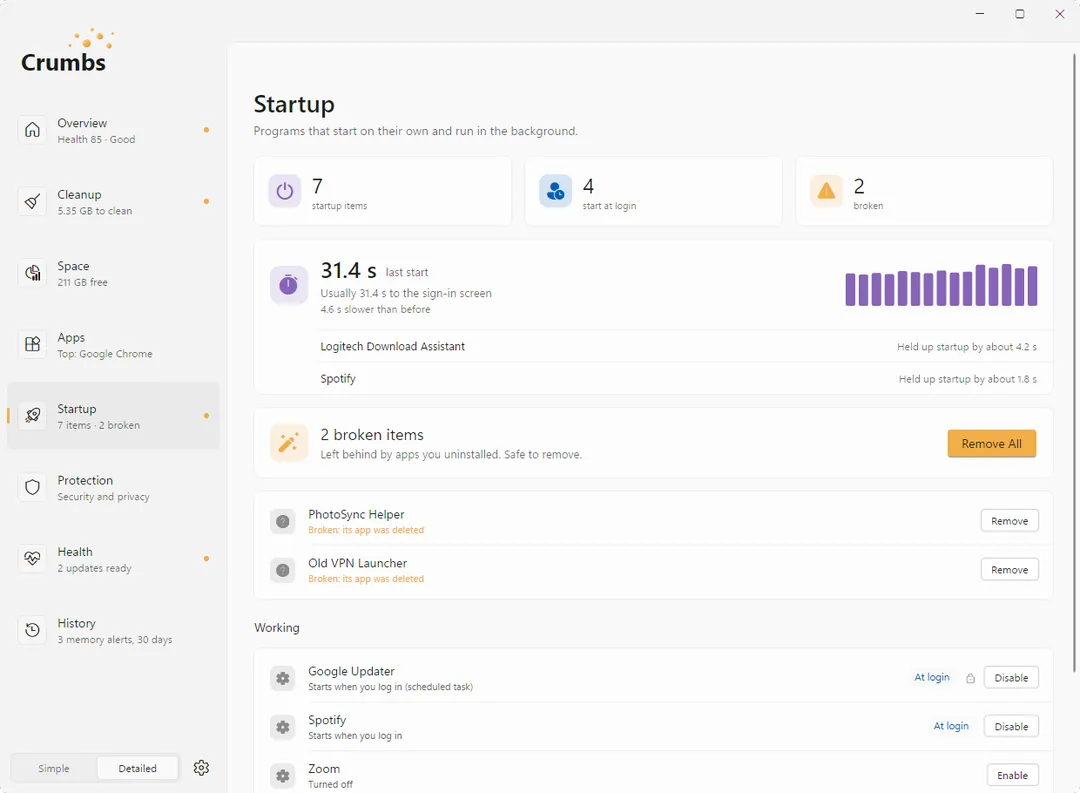
Startup apps
Turns startup apps off and on the same way Task Manager does, and shows how long startup takes and what slows it down. Changing an entry for all users asks for permission once, only when you pick one. Removing broken leftovers is Pro.
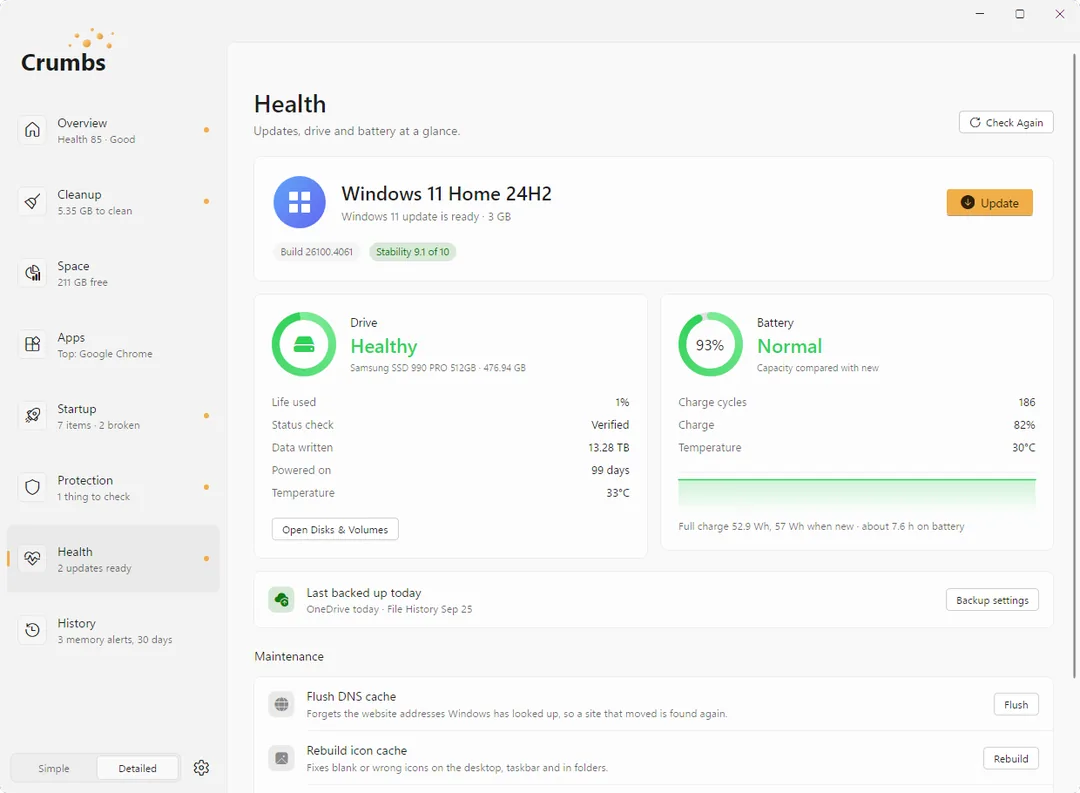
System updates, drive and battery
Shows your Windows Update status, checks your drive's health and, on laptops, your battery, and reminds you when your last backup is getting old. A full battery report is Pro.
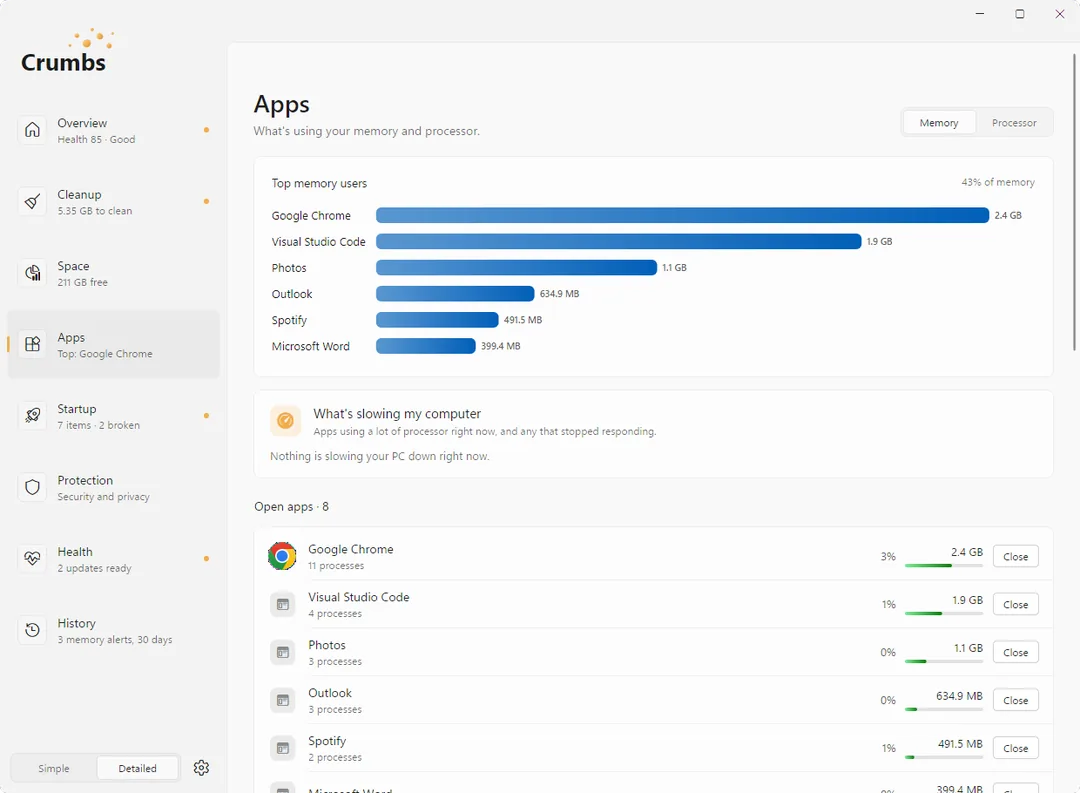
Your apps
See which apps are using the most memory and processor, and close them from one place. It also finds app updates through winget. One-click updates, the uninstaller that finds leftovers, and alerts when an app hogs your PC or stops responding are Pro.
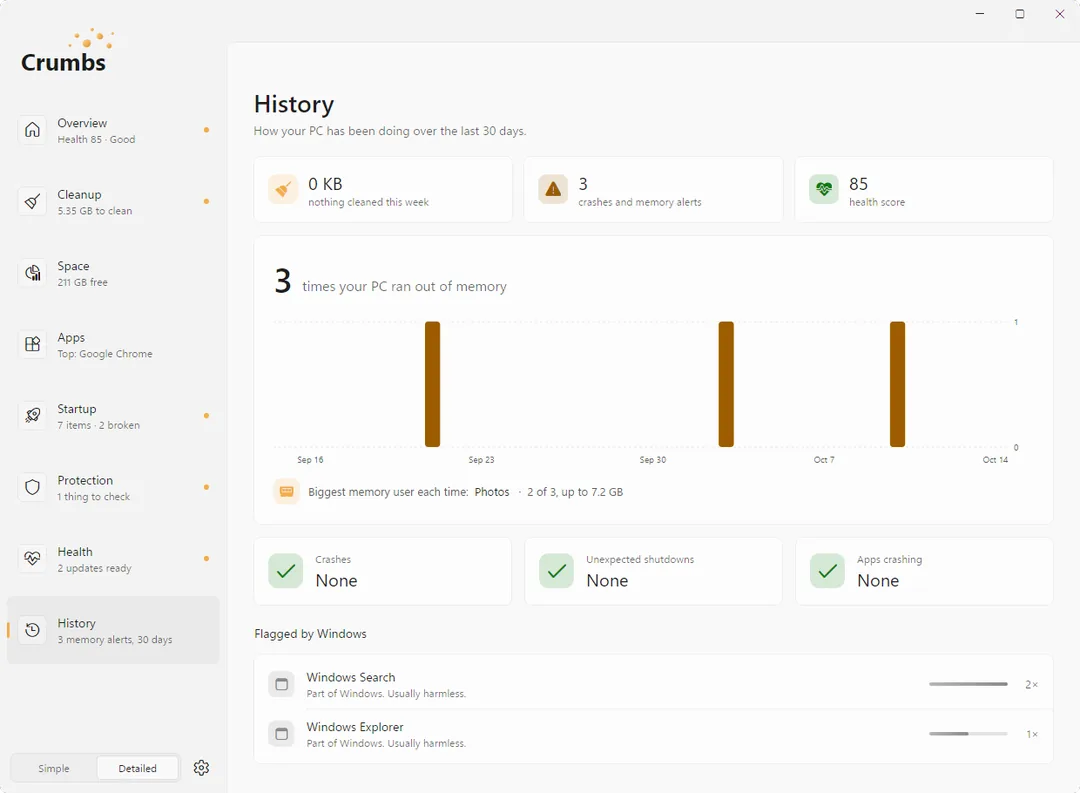
30-day history
Shows when memory ran out, any blue screens or unexpected shutdowns, and apps that crashed or froze, with a short summary every Monday.
Lives in the menu bar if you want a quick look, and comes in a Simple or Detailed view and three looks: Minimal, Warm or Glass.
Lives in the notification area with a mini panel, comes in a Simple or Detailed view, and follows your Windows light or dark setting, or you can pick one in Settings. It stays light, too: under 1% of the processor with the window open, and about 0.2% in the notification area.
It Tells You When Something Needs a Look.
A scan runs on its own once a week, and Crumbs lets you know, quietly, when something is worth your attention. Every kind of alert can be switched off, and you never get more than three in a day.
Your Privacy and Security, at a Glance.
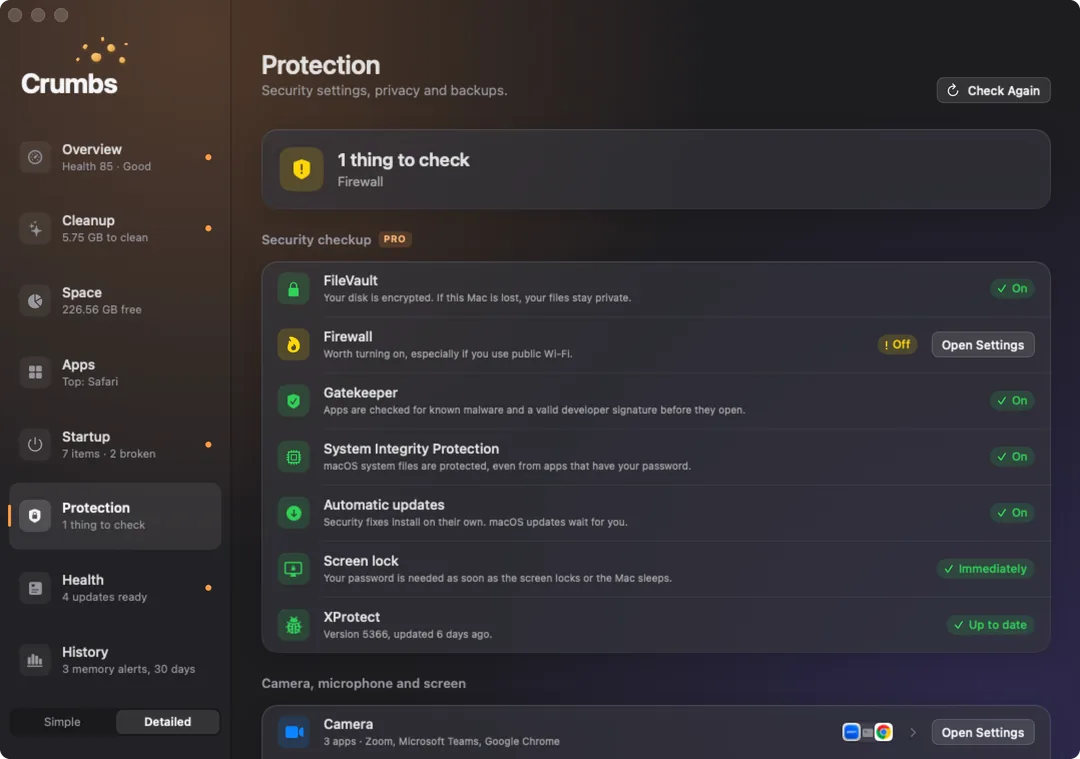
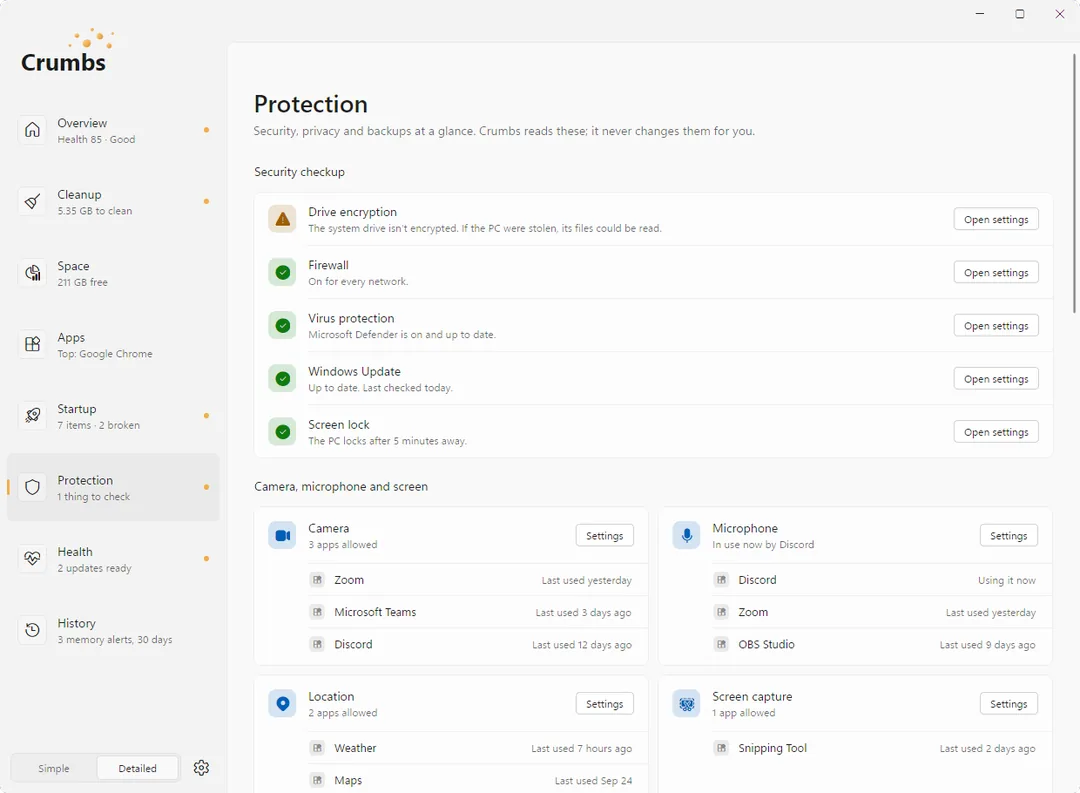
- Camera, microphone and screen. See which apps are allowed to use them, and when they last did where the system keeps track. Crumbs opens the right settings page and never changes permissions itself.
- Browser extensions. What is installed in each browser, in one list.
- Security checkup Pro Disk encryption, firewall, malware protection, automatic updates and screen lock, each with a plain explanation and a button to the right setting. Crumbs reads, never changes.
- Privacy cleanup Pro Clear a browser's history, cookies and site data. Saved passwords and autofill are never touched.
Questions
Which computers does it run on?
Macs running macOS 14 Sonoma or later, with Apple silicon or Intel, and PCs running 64-bit Windows 10 or 11.
Can I use one license on my Mac and my PC?
Yes. One key works on up to three computers, in any mix of Macs and PCs. Each one activates once with your key.
Will it delete anything important?
No. It only clears files that apps and the system rebuild on their own, and old installers you no longer need. It never touches your documents, photos or cloud storage, it is never a registry cleaner, and it never deletes backups or restore points. On a Mac you can turn on Move to Trash to undo; on Windows, old installers go to the Recycle Bin.
Does it need administrator rights on Windows?
No. It installs just for you, without an administrator prompt, and cleaning never asks for one. The only time Windows asks is if you change a startup entry that applies to every user on the PC.
What happens when I first open it?
A short setup, and every step can be skipped: pick a look on a Mac (on Windows it follows your light or dark setting, and you can change it), choose whether Crumbs starts at login, turn notifications on or off, then enter a key or carry on free. Then it runs its first scan.
Will the free version keep asking me to buy?
No. Pro features show a small Pro tag so you know what the license adds. There are no sale pop-ups.
Can I buy a license outside the United States?
Not yet. Licenses are on sale in the United States for now. The download and all the free features work everywhere.
How do I get a refund?
Send us a note with the form below within 14 days of buying. No questions asked.
Free to Scan. $10 to Fix.
Crumbs is genuinely useful for free: it shows you what is wrong and helps with the easy wins. Pro does the work for you, for $10 once.
Free
$0
- Scan and health score
- Space viewer, large and old files
- Notifications and a weekly automatic scan
- Startup items on and off, and startup speed
- Backup reminder
- Camera, microphone and screen access
- Weekly summary
- Tidy suggestions for Desktop and Downloads
- Browser extensions list
Pro
$10 once
- Cleanup and Fix All
- Uninstaller that finds leftovers
- Privacy cleanup for browsers
- Removing startup items
- Security checkup
- Heavy app alerts
- Battery report
- Maintenance tools
- Scheduled cleaning and auto-tidy
- One-click app updates
- Old iPhone and iPad backups
- Duplicate finder
- Ignore list
One key for up to 3 computers, Mac or PC. No subscription.
Buy ProSold in the United States for now. The download and the free features work everywhere.
Changed your mind? Ask within 14 days for a full refund.
Nothing Leaves Your Computer.
No account. No tracking. No analytics. Crumbs never uploads anything about your Mac or PC. It goes online for three things only: to check for updates, to activate your license, and about once a week to confirm the license is still active.
Questions About Crumbs?
Help, a license problem or a refund. It comes straight to us and a person writes back.